How Long Does Chrome Keep Your History? (And How to Keep It Longer)
Chrome doesn't keep your browsing history forever. If you're trying to find a page from several months ago, it might already be gone.
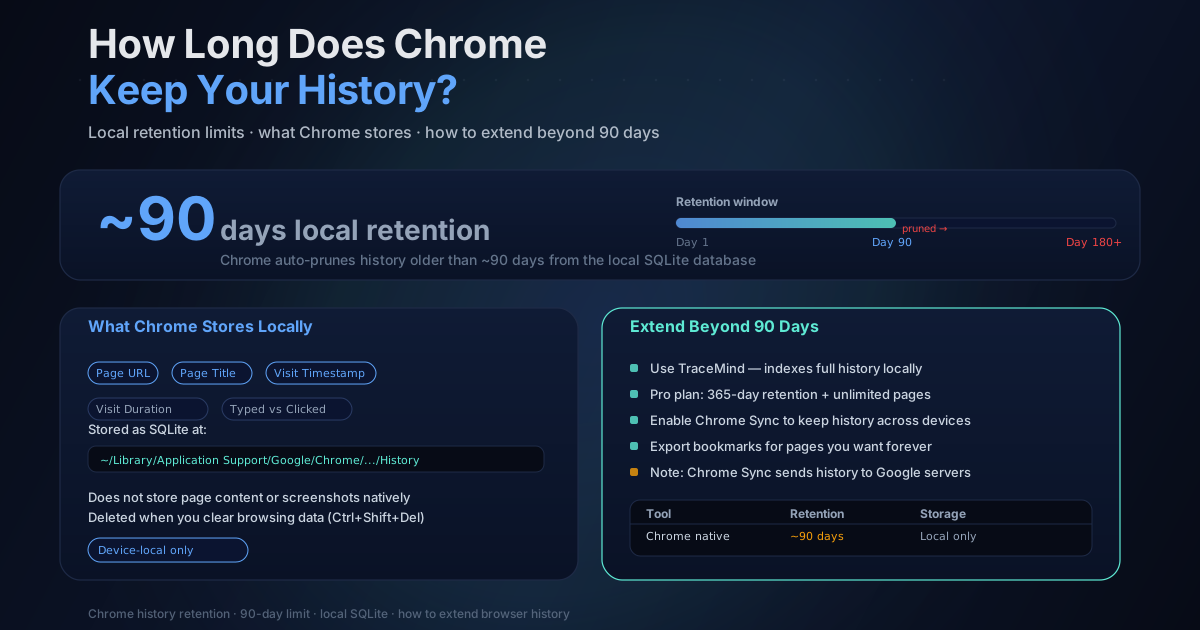
The exact retention period has never been clearly documented by Google. From what I've observed and what others consistently report, Chrome typically keeps local history for about 90 days. After that, older entries get pruned to make room for newer ones. The exact cutoff varies based on how much you browse and how much storage space Chrome has to work with. Heavy browsers may see history disappear sooner.
Ninety days sounds like a lot until you need something from four months ago. That research you did in September? Gone by January. The page you meant to bookmark but didn't? Deleted before you thought to go back for it.
How Chrome Actually Stores Your History
Chrome keeps browsing history in a SQLite database called History inside your browser profile folder. On Windows, that's typically at C:\Users\[YourName]\AppData\Local\Google\Chrome\User Data\Default\. On Mac, it's at ~/Library/Application Support/Google/Chrome/Default/.
This database has a hard limit on the number of entries it stores. The commonly cited figure is 10,000 URLs, though I've seen discussions suggesting Chrome may store more in practice and uses time-based pruning alongside size-based pruning. When the database fills up or entries get old enough, Chrome removes the oldest records automatically.
There's no setting inside Chrome to change this. No slider that says "keep history for 180 days." The retention period is baked into the browser.
Google Account History Is a Completely Different Thing
This is where a lot of people get confused. There are two separate systems:
Chrome's local history is stored on your device. It's what you see when you press Ctrl+H. It persists for roughly 90 days, and it's only on the device where you browsed.
Google My Activity is stored on Google's servers. If you're signed into Chrome and have Web & App Activity enabled in your Google account, Google records a separate log of your browsing. You can access this at myactivity.google.com. This data stays until you manually delete it or configure an auto-delete rule.
Google offers three auto-delete options: 3 months, 18 months, or keep until you delete. The default, if you've never changed it, is "keep until you delete." That means Google may have years of your browsing data on file.
The catch is that you have to be comfortable with that tradeoff. Your browsing history lives on Google's infrastructure, where it can be used to personalize ads and search results, accessed by Google employees under certain circumstances, and potentially subject to legal requests. Many people prefer to keep browsing data local specifically to avoid that kind of arrangement.
Why 90 Days Isn't Enough
The 90-day window made sense when browsers were simpler tools. You'd visit a news site, a few shopping pages, maybe check your email. Losing three-month-old history was rarely a problem.
The way people use browsers has changed. Developers, researchers, writers, and students now use the browser as a working environment. Reference pages, documentation, forums, research papers, product comparisons. These aren't one-time visits. They're resources you expect to return to months later.
I've hit this wall more times than I can count. A technical forum post that solved an obscure problem. A comparison chart I used to make a purchasing decision. A recipe I actually liked but forgot to bookmark. Gone after 90 days, with no way to get it back through Chrome's native history.
The assumption built into Chrome is that old history is irrelevant history. For a lot of us, that's simply wrong.
What Happens to History When You Clear Cache?
Quick clarification that comes up often: clearing cache does not delete your browsing history. Chrome stores these separately.
When you open Chrome's "Clear browsing data" dialog (Ctrl+Shift+Delete), you'll see checkboxes for:
- Browsing history
- Cookies and other site data
- Cached images and files
These are independent. Clearing cached files removes temporary copies of images and scripts that Chrome downloaded for faster page loading. Your history entries remain untouched. You only lose history if you specifically check the "Browsing history" box.
Same applies to cookies. Clearing cookies logs you out of sites and removes saved form data, but your history list stays intact.
Your Options for Keeping History Longer
If the 90-day default isn't working for you, there are several approaches, each with different tradeoffs.
Enable Google Account Sync (With Privacy Tradeoffs)
The simplest option. Sign into Chrome, turn on sync, and enable Web & App Activity in your Google account settings. Your browsing history syncs to Google's servers and persists much longer than 90 days.
The tradeoff is real. Your complete browsing history is stored on Google's servers and used to personalize your experience across Google products. If you're already a heavy Google user and comfortable with that arrangement, this costs you nothing extra. If you care about keeping your browsing private from Google specifically, this option defeats the purpose.
Periodic Manual Exports
Some extensions can export your Chrome history to a file. You'd run an export every few weeks, saving CSV or JSON files of your history that you can search later.
This works but it's clunky. You end up with a pile of text files. Searching across them requires either loading them into a spreadsheet or writing a script. There's no automatic way to query across multiple exports. And you have to actually remember to run the export on schedule, which most people don't.
Use a Dedicated History Extension
Several extensions exist specifically to extend and improve browser history. They maintain their own index independently of Chrome's native history database, which means they're not subject to Chrome's 90-day pruning.
The important thing is to read the privacy policy before installing any of them. Some store your history in the cloud (which extends retention but moves your data off-device). Some have permissions that go well beyond what a history tool actually needs.
TraceMind keeps everything locally on your device in IndexedDB. The free tier stores up to 365 days of history. It also indexes the full text of pages you visit, not just titles and URLs, which means you can search by what you remember reading rather than what you remember the page was called. The extension uses the all-MiniLM-L6-v2 model running directly in your browser via WebGPU or WASM for semantic search, so nothing leaves your device even during search.
For more on how Chrome's native history compares to extension-based alternatives, see the best Chrome history extensions for 2026.
Reduce Chrome's Storage Pressure
This is less a solution than a marginal optimization. Chrome prunes history partly to manage storage. If Chrome has more free storage available, it may keep history entries slightly longer.
Clearing cached images and files periodically frees up space without touching your history. Uninstalling extensions you don't use also helps slightly. But I wouldn't count on this approach for meaningful history extension. The gains are unpredictable and small.
A Quick Comparison
| Method | Retention | Privacy | Effort | |---|---|---|---| | Chrome default | ~90 days | Local only | None | | Google sync + My Activity | Years | Stored on Google servers | Low setup | | Manual exports | Indefinite | Local only | High (ongoing) | | TraceMind Free | 365 days | 100% local | Low setup | | TraceMind Pro | 365 days + more features | 100% local | Low setup |
What About Incognito Mode?
Incognito history is never written to disk at all. When you close an Incognito window, Chrome discards everything from that session. There are no entries to prune because none were ever stored.
This means you can't recover Incognito browsing after the fact. If you visited a page in Incognito and want to find it again, your options are: go back to the site directly, check if the tab is still open, or accept that it's gone.
If you use Incognito as a privacy tool but still want to be able to search your own history, this is one of the reasons extensions like TraceMind let you selectively exclude domains rather than hiding everything.
The Honest Bottom Line
Chrome's history was built as a convenience feature, not a research archive. The 90-day limit reflects that. If you treat your browser history as a searchable record of your work and research, the default settings will let you down.
Pick a system that matches how you actually use your browser. If you're already in the Google ecosystem and not worried about the privacy tradeoffs, enabling account sync is fine. If you want your history to stay off Google's servers, a local-first extension is the better call.
Your future self will thank you when you need to find that article from seven months ago and it's actually still there.