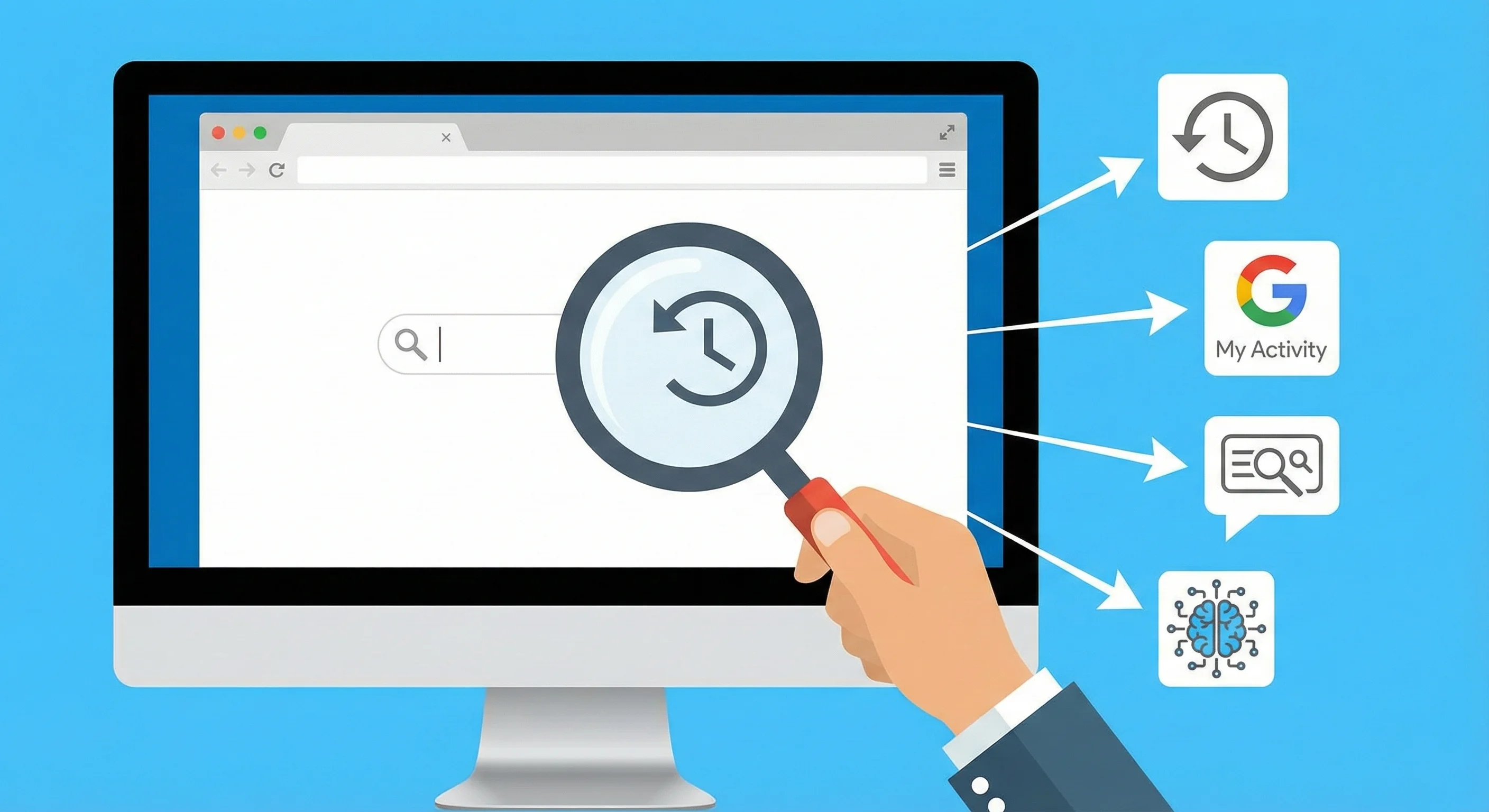
Short answer: Start by checking your browser's history or Google's My Activity page. If those don't help, try a Google search with clues you remember (like a phrase or site name). Finally, consider using an AI-powered history search tool (like TraceMind) that lets you describe the page instead of guessing exact keywords.
We've all been there. You discovered a great website or article recently — maybe last week, maybe yesterday — and now you need it again. You can picture the content and remember what it was about, but you cannot, for the life of you, recall the website's name or URL.
Opening your browser history gives you an endless list of titles you don't recognize, and a normal Google search isn't turning it up. Frustrating, right?
The good news is there are several ways to track down a website when you've forgotten its name. Some methods work best if you remember a keyword or two, while others can help even when you only remember the general topic or what the page looked like.
Below, we'll cover five effective methods, from built-in browser tricks to advanced search techniques. We'll also show how a tool called TraceMind can make sure this problem doesn't happen again.
Before You Start: Quick Checks
Before diving into search methods, run through these quick sanity checks. They only take a few seconds and might save you a lot of time:
-
Incognito Mode: Did you perhaps view the site in a private/incognito window? Pages opened in Incognito won't be saved in your history. If so, you may need to recall more details or try the other methods below.
-
Different Device or Browser: Think about where you accessed it. Was it on your phone, work laptop, or a different browser (Safari, Firefox, etc.)? Each device or browser keeps its own history. You might need to check the history on that specific device.
-
Sync Settings: If you use Chrome and weren't signed in or sync was off, the history from another device might not show up on your current one.
-
Time Factor: The more time (and browsing) that has passed, the deeper that page is buried. If it's been a while, be prepared to scroll further back or use date filters.
If none of these issues apply, let's move on to the real search strategies.
Method 1: Use Your Browser History Search
Fastest built-in option.
Best when: You recall a specific keyword, part of the title, or the site name itself.
Every web browser keeps a log of the pages you visit. This should be your first stop:
-
Open your history: In Chrome, press
Ctrl + H(Windows) or⌘ + Y(Mac) to open the history tab. In other browsers, look for a "History" menu or pressCtrl + Has well. -
Search for a keyword: Use the search box at the top of the history page. Try typing any word you do remember — maybe a topic or the name of the site if you sort of recall it. For example, if the page was about electric cars, search your history for "electric" or "Tesla."
Chrome's history search will look for matches in page titles and URLs only. If you're lucky enough that the page title contained the keyword you remember, it should show up. For instance, searching "recipe" might find a page titled "Easy Lasagna Recipe – Vegan Cooking Blog."
Tips for Browser History Search
-
Try a couple of different terms: If one keyword doesn't bring it up, think of another relevant term. Search once by the topic and once by the website or brand (e.g. search "lasagna" and also search "vegan blog").
-
Scan by date: What if you don't recall any specific words? Switch tactics — think about when you visited the site. Chrome's history is chronological. Scroll to the approximate date and time you remember (e.g. "Tuesday evening last week"). As you scroll, pay attention to the site favicons (the little icons next to each entry) and titles. Visual cues like a familiar icon or a title format can jump out even if you forgot the name.
The Limitation
This method only works well if something in the page title or URL jogs your memory. Many times, though, the titles are generic or your memory of keywords is fuzzy.
For example, maybe you remember the content was about improving laptop battery life, but the page title was "Tech Insights Issue 42." A generic title won't match a keyword search at all. This is a fundamental flaw with browser history: if you don't recall the exact words, you're often out of luck.
It's the reason people start looking for more powerful Chrome history extensions that offer flexible search by content.
Method 2: Check Google "My Activity"
When you use Google accounts.
Best when: You remember what you searched for that led you to the site.
If you were signed into your Google account while browsing (especially in Chrome or on Android), Google likely has a record of your activity. This can fill in gaps that your normal history search misses:
-
Go to myactivity.google.com and log in to your Google account. This is Google's dashboard of your browsing and search activity.
-
Filter by date: Use the filters to narrow down to the date or date range when you think you visited the site. For example, select "Last 7 days" or a specific date.
-
Review searches and visits: Google My Activity will show a timeline of things like search queries you entered and websites you visited. Look for Google searches you performed around that time — the query itself might remind you what you were looking for.
If you see a search query that looks familiar, click it to re-run that search. You might rediscover the site in the results, just like you did originally. Also, scan for any website names in the activity log that could be the one you need.
Google's activity log is often more granular than the browser's own history. For instance, it might show that you searched for "best laptop battery tips" on Tuesday at 3 PM, and then visited a particular article from those results. That jogs your memory: "Oh right, I googled it!" Now you can repeat that Google search and likely find the site again.
Note: This method depends on your account settings. If you had Web & App Activity turned off (for privacy), or you weren't signed in, Google might not have the data. And keep in mind, using My Activity means Google is storing a lot of info about your browsing. It's a useful backup, but not everyone is comfortable with that level of tracking.
Method 3: Use Google Search Tricks for Clues
Let Google do the digging.
Best when: You remember something specific — a phrase from the page, a unique term, or maybe the site's general domain.
Even if you don't recall the site name, you might recall a snippet of text or an idea from the page. Standard Google searches can sometimes be too broad, but a few advanced tricks can narrow things down:
Exact Phrase Search
If a particular sentence or distinctive phrase from the article stuck in your mind, try searching for it in quotes. For example, if you remember the page said "10 tips to extend your battery life", search Google for "extend your battery life" (in quotes). Google will look for that exact phrase. This is great for finding an article when you remember a line almost verbatim.
Site-Specific Search
Maybe you suspect the site was on a certain domain or one of a few possibilities (like you think it was an NYTimes article or something on Wikipedia). You can tell Google to search only within a specific site.
For instance, if you think the website was The Verge, search for:
site:theverge.com electric car battery health
Google will return results only from theverge.com related to electric car batteries. Even if you're not sure of the exact site, you can try a broader domain like site:.edu or site:.gov if it was an educational or government page.
Use Wildcards
If you half-remember a phrase, you can use * as a wildcard for the missing word. Searching for "best * for battery health" might bring up results like "best practices for battery health" or "best apps for battery health," one of which could be the page you saw.
Exclude Irrelevant Hits
Sometimes a big website or topic dominates the search results, but it's not what you need. You can exclude a term with a minus. For example, if you search for a guide and keep seeing Amazon links, add -amazon.com to remove those. This can declutter the results and surface the lesser-known site you have in mind.
These tricks essentially help you recreate the scenario of how you might have found the page originally. They are a bit more advanced but can be lifesavers when normal searches fail. Just remember to be patient and try a few combinations of keywords, phrases, and operators.
Method 4: Check Your Saved and Shared Links
Double-check places you save stuff.
Best when: You think you might have saved, favorited, or shared the link.
When we find something valuable, often our first instinct is to save it somewhere or share it with someone. This method is about checking all those "other" places the URL might be recorded:
Bookmarks and Favorites
Did you click the little star icon to bookmark it? Open your browser's bookmarks manager and search within it. Sometimes we bookmark things on impulse and forget. In Chrome, you can press Ctrl + Shift + O to open the bookmark manager, then use its search box.
Reading List or Save-for-Later Apps
If you use a reading list (like the one built into Chrome or Safari) or a service like Pocket, Instapaper, or Raindrop, scan those. Many lost pages end up in these lists we intended to read fully later.
Recently Closed Tabs
Some browsers have a menu for recently closed tabs or windows. If it hasn't been long, you might literally reopen the tab from your history of closed tabs.
Notes and Documents
Think if you copied the link somewhere. Perhaps you dropped it into a note-taking app (Notion, Evernote, OneNote) or a Word/Google doc while collecting info. Do a quick search in any notes app or documents you used around that time. Even a generic search for "http" or the topic keyword in your notes could surface something.
Email and Messages
If you emailed the link to yourself or shared it in a chat, check your sent emails, Slack, Teams, WhatsApp, SMS, or whatever messaging platform you use. Often we share interesting links with friends or colleagues. Skim through your conversations or use the search feature in those apps for keywords or http links.
Tabs from Other Devices
Also check other devices if applicable. For example, on Chrome you can view tabs open on your other devices (look for the "History" > "Tabs from other devices" section). If your phone's browser still has the tab open or in its history, you might find it there. Similarly, if you have an iPhone and Mac with Safari, the iCloud Tabs feature might show the page if it's still open on one device.
This step is a bit of a scavenger hunt, but it often pays off. People frequently overlook the fact that they saved the page somewhere. It's a great feeling to realize, "Oh! I already bookmarked it!" and get the page back instantly.
Method 5: Search Your History by Meaning (Using TraceMind)
Search by meaning, not by exact words.
Best when: You only remember the general idea or topic of the page, not any specific keywords.
If you've tried everything above and still can't find that elusive website, it might be because of a deeper issue: the way we search vs. the way we remember.
Traditional history and Google searches expect you to input exact keywords that were present on the page. But as humans, we remember things more loosely. Maybe you recall "that blog with a blue design talking about a new AI tool" — that's a rich description, but not something Chrome's history or Google's index can match directly.
How AI-Based History Search Works
This is where an AI-based browser history search tool can save the day. TraceMind is one example (and it was built specifically for this problem). Here's how it works:
-
Full content indexing: TraceMind runs in your browser and indexes the actual text content of every page you visit, not just the title or URL. So even if the site's name was "TechDaily" and the title was "Update 42," if the content was about AI marketing trends, TraceMind knows that.
-
Semantic search: Instead of keyword matching, it uses AI to understand the meaning of your query. You can literally type a description of what you remember: "the article about a new Chrome extension that uses AI in history search" or "that recipe site with the vegan lasagna". TraceMind will return results from your history that conceptually match that description, even if the words differ. It's like asking your own digital memory, "Hey, what was I reading about AI and browser history?", and it actually finds it.
-
On-device and private: Concerned about privacy? TraceMind is designed to be 100% on-device. Unlike some tools that might send your browsing data to the cloud for analysis, TraceMind does all the indexing and searching locally on your computer. Your history never leaves your machine, which means you're not sharing your browsing activity with any third-party servers.
For more on this approach, see why on-device AI beats cloud-based search for privacy.
The Key Difference
In short, Method 5 is less about finding the lost page right now (since you'd need TraceMind already installed to use it retroactively) and more about preventing future headaches. If you frequently find yourself thinking "What was that site I saw?", a semantic history tool ensures you won't have to go through all these hoops again. You'll just search your own history in plain English and get what you need.
Related: Semantic Search Explained — see how AI "understands" your queries in a smarter way.
Which Method Should You Try First?
| Situation | Best Method | |-----------|-------------| | Remember a keyword or title | Browser History Search | | Remember what you searched for | Google My Activity | | Remember a phrase from the page | Google Search Tricks | | Think you saved or shared it | Bookmarks, Notes, Messages | | Only remember the general idea | Semantic Search (TraceMind) |
FAQ
Why can't I find a website I visited recently?
Most commonly because it was opened in Incognito mode, visited on a different device or browser, or Chrome Sync was disabled. The page title may also be too generic to match your search.
How do I search my browser history without knowing keywords?
Try scrolling to the approximate date/time you visited, use visual cues like favicons, or use an AI-powered semantic search tool that lets you describe the page by meaning.
Does Google save my browsing history?
If you were signed into your Google account with Web & App Activity enabled, Google My Activity stores your search queries and visited sites at myactivity.google.com.
Final Thoughts
Losing track of a great website is a common problem, and it doesn't mean your memory is bad. It means the tools we have (browser history, basic search) are too rigid. They require exact matches, while you remember ideas and context. It's a mismatch.
By using the methods above, you can usually recover the page:
- Try browser history if you have a time frame or keyword in mind
- Use Google My Activity if you were signed in and remember your search path
- Search with quotes or site: operators if you have any specific clue
- Scour your bookmarks, notes, and messages in case you saved or shared it
- For the long term, consider a semantic history tool like TraceMind so you can search your history by meaning and avoid this frustration next time
The next time you catch yourself thinking, "I remember reading something about this, but where?", you'll know exactly what to do.
Ready to give semantic history search a try? Download TraceMind and see how much easier finding old pages can be.