How Long Does Google Keep Your Search History? (2026 Answer)
Short answer: indefinitely, unless you tell it to stop.
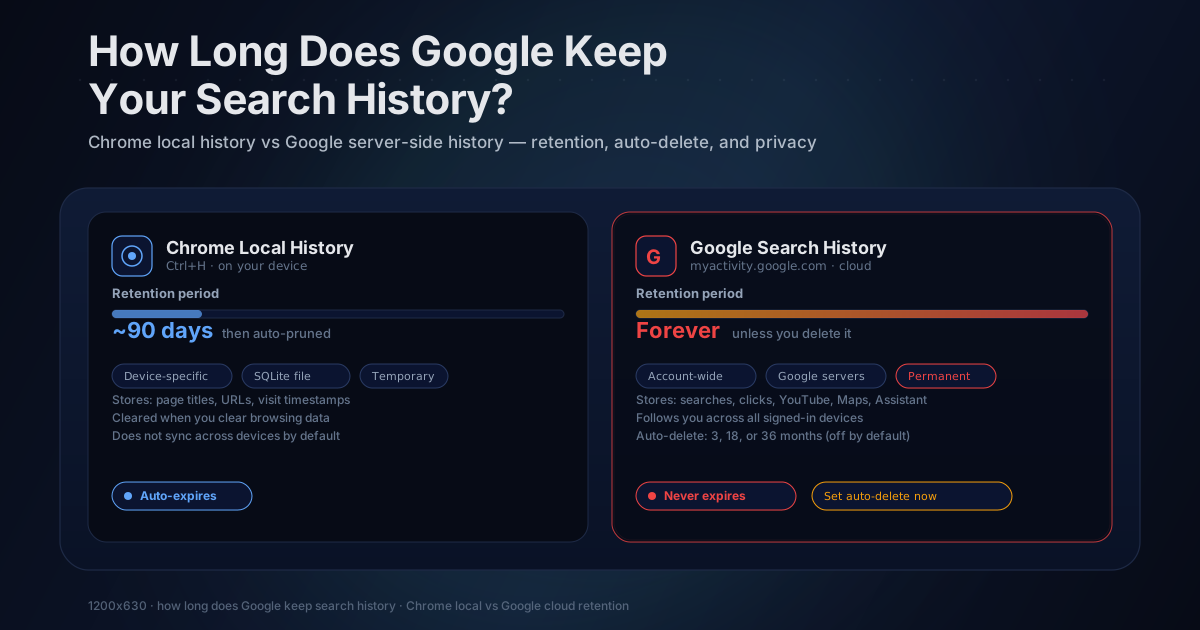
If you are signed into a Google account and Web & App Activity is turned on (which it is by default for most users), Google saves every search you make and every website you visit through Chrome. That data stays on Google's servers with no expiration date until you manually delete it or set up auto-delete rules.
This is different from Chrome's local history, which lives on your device and gets pruned after roughly 90 days. Google's server-side history has no such limit, and it's far more detailed than most people realize.
Google Search History vs. Chrome Local History
These are two completely separate systems, and confusing them is extremely common.
Chrome local history is the list you see when you press Ctrl+H. It is stored in a SQLite database file on your computer (on macOS, in your user profile directory; on Windows, in AppData). Chrome keeps it for roughly 90 days before older entries get pruned automatically. If you clear your browsing data, uninstall Chrome, or switch devices, it's gone. It contains page titles, URLs, and visit timestamps, nothing more.
Google search history is what lives at myactivity.google.com. It is stored on Google's servers, tied to your Google account. It includes your search queries, websites you visited through Chrome if sync is enabled, YouTube watch history, Google Maps searches, voice commands to Google Assistant, location history, and activity from other Google services. This data persists indefinitely by default and follows you across every device where you're signed in.
The key difference: Chrome local history is temporary and device-specific. Google search history is permanent and account-wide. Clearing Chrome's local history does nothing to what Google has stored on its servers.
For a deeper look at how long Chrome itself keeps local history and what it actually stores: How Long Does Chrome Keep Your History?
Where to Find What Google Has Saved
Go to myactivity.google.com and sign in. You'll see a timeline of everything Google has recorded, going back as far as your account has been active.
You can filter by date, by Google product (Search, Chrome, YouTube, Maps, Assistant), and by keyword. The search bar at the top lets you look for specific activity. Searching "flights" will show every time you searched for flights, visited a booking site, or watched a travel video across all Google properties.
Most people are surprised by how granular the record is. Google doesn't just save search queries. It saves:
- Which search results you clicked and approximately when
- How long you spent on sites visited through Chrome sync
- What you asked Google Assistant by voice or text
- What YouTube videos you watched and how far through you watched them
- What places you searched in Google Maps and what directions you requested
- App installs and activity from Android apps using Google Play Services
The complete picture is significantly more detailed than just a list of searches. It's a behavioral record of how you use Google products across devices and over years.
How Auto-Delete Works
Google offers three auto-delete options for Web & App Activity:
- Delete activity older than 3 months
- Delete activity older than 18 months
- Delete activity older than 36 months
To set this up, go to myactivity.google.com, click Web & App Activity, then choose Auto-delete. Pick the timeframe you're comfortable with and confirm. Google will then automatically delete activity older than your chosen window on an ongoing basis.
If you've never touched this setting, auto-delete is off. Everything stays forever.
One thing worth knowing: even with auto-delete enabled, there can be a delay before records are actually purged. Google notes that deletion may not be immediate and that some data may be retained in backup systems for a short period after deletion. For most practical purposes this doesn't matter, but it's worth knowing if you expected immediate deletion.
How to Turn Off Google Search History Entirely
If you don't want Google saving your activity at all:
- Go to myactivity.google.com
- Click Web & App Activity
- Toggle it off
This stops Google from recording new searches and browsing activity going forward. It doesn't delete what's already saved. To remove existing history, you need to use the delete controls separately on the same page.
There are also separate controls for Location History, YouTube History, and other activity types. Each has its own toggle and auto-delete settings. Turning off Web & App Activity only affects that category.
Keep in mind that turning these settings off may reduce the quality of personalized results, recommendations, and some Google features. Google autocomplete, personalized Search results, and Google Assistant responses all depend on your activity history.
How to Delete Specific Searches or Date Ranges
On the My Activity page, you have several deletion options:
Delete a single item: Find the entry in your timeline and click the X icon next to it.
Delete by date range: Use "Delete activity by" and pick a specific date range. You can also filter by Google product, so you could delete just your YouTube watch history from a specific month without touching your search history.
Delete everything: Choose "Delete activity by" and select "All time" to wipe your entire history across all products.
Bulk delete by keyword: Search for a term in your activity, then delete all matching results at once. This is useful if you want to remove a specific topic from your history without deleting everything.
Google also offers a "Delete last hour" quick option that appears after a search, which is handy if you searched for something you'd rather not have on record.
What Does "Incognito" Actually Do?
This is a common misconception worth addressing directly. Incognito mode prevents Chrome from saving a local history record of your browsing. It doesn't prevent Google from recording your searches on its servers.
If you open an Incognito window and search on Google, Google can still log that query tied to your IP address. If you're signed into your Google account in that Incognito window (some people do this), the search is tied to your account just like normal. Even if you're not signed in, Google logs aggregate search data and can associate queries with your IP.
Incognito is a local privacy tool, not a network privacy tool. For genuine search privacy, you'd need to use a privacy-focused search engine (DuckDuckGo, Kagi, Brave Search) combined with a VPN or Tor, which prevents Google from seeing the queries at all.
What Google Uses Your Search History For
Google uses your activity data primarily for personalization and advertising. Specifically:
- Tailoring search results to your browsing interests and past behavior
- Serving targeted ads across Google Search, YouTube, Gmail, and millions of partner sites through Google Display Network
- Improving Google Assistant responses based on past queries
- Recommending YouTube videos based on watch history
- Refining Google Maps suggestions based on location and search patterns
- Training and improving Google's AI models (subject to your account settings)
The autocomplete suggestions you see when typing in Google Search are shaped directly by your personal search history combined with aggregate data from other users. That "I feel like Google is reading my mind" experience comes from years of behavioral data being applied in real time.
Whether this personalization is useful or uncomfortable depends on your perspective. Plenty of people genuinely find it helpful. Others find it unsettling to know that a detailed record of their intellectual interests, health concerns, financial situation, and political views has been building up on someone else's servers for years.
The Privacy Tradeoff
There's a real tension here. Google's cloud history gives you powerful features: cross-device search continuity, personalized results, and a backup of your activity that survives device changes and hard drive failures. But it also means a detailed record of your digital life exists on someone else's servers.
That record can be subpoenaed by law enforcement. It can be exposed in a data breach. It can be used for ad targeting in ways you didn't anticipate when you first signed up. And even with auto-delete enabled, you're trusting Google's systems to actually delete the data rather than retaining it in anonymized or aggregate form.
I've found that most people don't think about this tradeoff until they actually look at their My Activity page and see years of granular data sitting there. It's a different thing to know abstractly that Google collects data versus seeing a timestamped record of what you searched for on a specific afternoon two years ago.
If you want search history that is powerful but stays on your device, that's exactly the tradeoff local-first tools are designed to solve. TraceMind indexes your browsing history locally, supports semantic search by meaning instead of just keywords, and keeps everything on your machine in your browser's IndexedDB. No Google account required, no server-side storage, no cloud dependency, and nothing subpoena-able from a third party.
For more on how on-device processing compares to cloud-based approaches: Privacy-First Extensions: On-Device vs Cloud
Google Takeout: Downloading Your Data
Worth knowing: Google Takeout at takeout.google.com lets you download a copy of all your Google data, including your full search history, YouTube history, and everything else Google has stored.
The download takes a while to prepare (Google emails you when it's ready), but it gives you a complete archive in JSON format. This is useful if you want to understand the full scope of what's stored, or if you're planning to delete your Google data and want a local backup first.
The JSON files are machine-readable but not particularly human-friendly. If you download your Search history export and open it, you'll see thousands of entries with timestamps. It's the same data you can browse on My Activity, just in a format you control locally.
The Bottom Line
Google keeps your search history indefinitely by default. The data is detailed, cross-device, and tied to your account. You can delete it, set auto-delete, or turn off recording entirely, but none of that is the default, and most users have never changed these settings.
If you're comfortable with Google's data practices and find personalization useful, the defaults may be fine for you. If you want more control, myactivity.google.com is where to start. And if you want a history tool that genuinely never leaves your device, TraceMind is free to try with no account required.