Browser History Privacy: What Chrome, Edge, and Brave Actually Store
Your browser history is a detailed record of your life. What you're researching, what health questions you're asking, what you're buying, what you're curious about, what you'd rather keep to yourself. Before trusting that record to any tool or service, it's worth understanding what data actually exists and where it goes.
I've thought about this a lot while building TraceMind, and the more I dug into it, the more I realized most people have no idea how many copies of their browsing data exist across different systems.
What Chrome Stores Locally
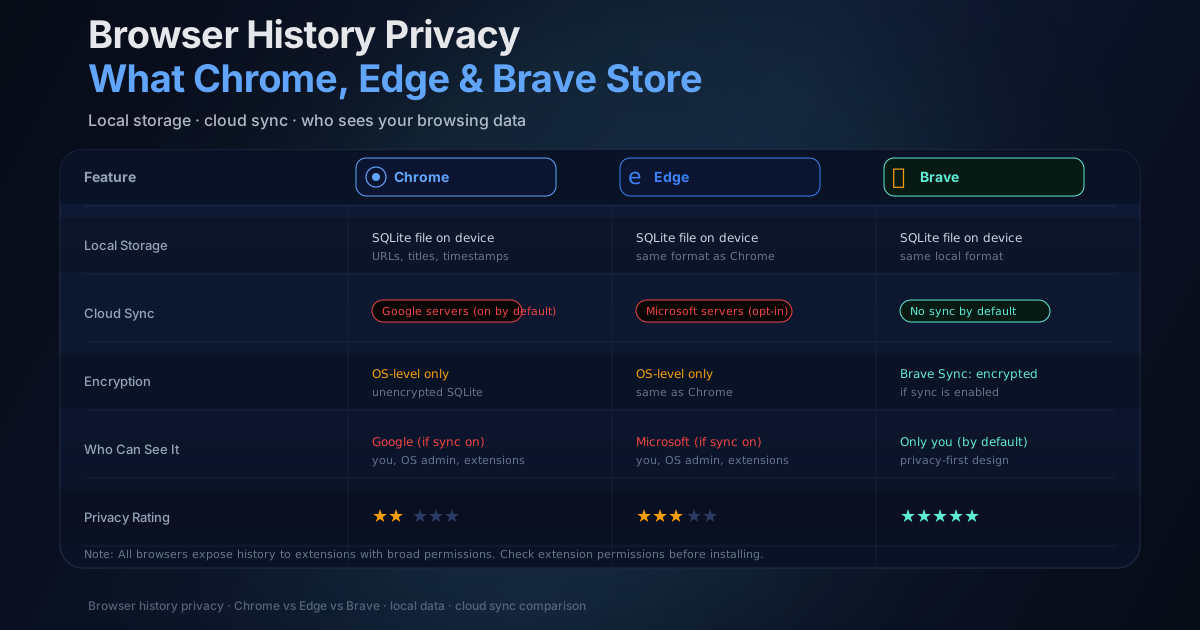
Chrome stores your browsing history in a SQLite database on your computer. On macOS, that's at ~/Library/Application Support/Google/Chrome/Default/History. On Windows, it's under %LOCALAPPDATA%\Google\Chrome\User Data\Default\.
The database contains:
- URLs you visited
- Page titles at the time of your visit
- Visit timestamps (to the microsecond)
- Visit duration (how long you spent on the page)
- Whether you typed the URL directly versus clicked a link
- Transition types (typed, link, form submit, reload, etc.)
- Download history as a separate table
The local database is what you see in Ctrl+H. It's plaintext SQLite, readable by any app that has file system access to that directory.
When Chrome Shares Your History with Google
If you're signed into Chrome with a Google account, the picture gets more complicated.
Chrome has multiple sync categories, and history sync is one of them. If you've signed in and accepted default settings, your browsing history is likely syncing to Google's servers. This creates a cloud copy tied to your Google account.
Separately, if Web & App Activity is enabled in your Google account (it's on by default for signed-in users), Google logs your browsing in a parallel system. You can see what they have at myactivity.google.com. Many people who check this for the first time are surprised by how extensive the record is.
Google uses this data for ad targeting, search personalization, and product improvement. They say the data is anonymized and aggregated for those purposes, but the raw record exists and is associated with your account.
To audit and reduce this: go to myactivity.google.com, check your Web & App Activity settings, turn off history sync in Chrome settings, and consider whether you actually need to be signed in.
What Edge Does Differently (Not Much)
Edge works on the same architectural pattern as Chrome (it's Chromium-based) but with Microsoft instead of Google in the cloud role. Local history lives in a similar SQLite database on your device.
If you're signed into Edge with a Microsoft account, history can sync to Microsoft's servers. Microsoft uses this for personalized recommendations, Bing search personalization, and, depending on your privacy settings, advertising.
Edge also has a "Collections" feature that's effectively bookmarking with more structure, and those collections sync to Microsoft when you're signed in.
One thing worth knowing: Microsoft Recall (Windows 11 Copilot+ PCs) goes further than browser history by capturing screenshots of your entire screen, not just browser visits. That's a different scope of data collection entirely. If you're curious how that compares to browser-specific tools, I've covered it in the Microsoft Recall comparison post.
What Brave Actually Does
Brave is genuinely more privacy-preserving than Chrome or Edge at the browser level. History stays entirely local by default and doesn't sync to any company's servers.
Brave Sync, if you enable it, uses an encrypted sync chain where the encryption keys are derived from a sync code you generate. Brave's servers store encrypted blobs they claim they cannot decrypt. This is verifiable in the open-source code, which is a meaningful difference from Chrome or Edge.
Brave still keeps a local SQLite history database in the same format as Chrome. The difference is that Brave doesn't have a business model built around that data, so they have less incentive to collect it.
Firefox follows a similar model to Brave: local-first history, optional encrypted sync, no ad-targeting business model driving data collection.
Where Else Your History Lives
Beyond the browser itself, your browsing pattern exists in several other places. Most people don't think about all of them simultaneously.
Your ISP. Your internet service provider sees every domain you connect to. HTTPS prevents them from seeing specific pages within a domain, but they see that you visited healthcare.gov, a specific mental health site, a legal services company, or whatever else. ISPs in many countries retain these connection logs for months or years and can be compelled to share them.
Your DNS provider. Unless you've set up DNS over HTTPS, every domain lookup goes through your configured DNS resolver. If that's your ISP's default DNS, they log it. If it's Google's 8.8.8.8 or Cloudflare's 1.1.1.1, those providers log it instead. Switching to DNS over HTTPS helps, but you're trading one provider for another.
Your employer or school network. If you're on a managed network or managed device, assume everything is logged. Corporate IT monitoring, endpoint management software, and network proxies all create records. Work computers in particular often have deep monitoring installed at the OS level.
The websites themselves. Every site you visit logs your IP address, timestamp, pages viewed, referrer (where you came from), browser fingerprint, and user agent. If you're logged in or have their cookies, they know exactly who you are. Third-party tracking scripts on most sites send this data to analytics companies, ad networks, and data brokers.
Extensions. Any Chrome extension with the "history" permission can read your entire local browsing history. Check your installed extensions. Go to Settings > Extensions > click "Details" on each one, then "View in Chrome Web Store" to see what permissions they declared. Many extensions request far more access than their stated function requires.
What You Can Do About It
The full privacy picture is complicated, but there are practical steps with real impact:
Audit your sync settings. In Chrome, go to Settings > Sync and Google services. Under "Manage what you sync," check if History is enabled. In Edge, check the same under Settings > Accounts > Sync.
Check your Google activity. Visit myactivity.google.com, then go to Data & Privacy > Web & App Activity. Review the settings and delete what you're uncomfortable with.
Review extension permissions. Go through each installed extension and check whether the history permission is actually necessary for what the extension does. Remove extensions you don't actively use.
Use private browsing mode for sensitive searches. This prevents local history logging. It doesn't make you anonymous to websites or your ISP, but it stops the local record.
Consider DNS over HTTPS. Chrome, Edge, and Brave all support it natively in settings under "Privacy and security." Cloudflare (1.1.1.1) and NextDNS are reasonable options.
Understand the tradeoffs of browser history tools. If you're using any extension that indexes your browsing history for search, understand where that index lives. The difference between on-device and cloud-based approaches is significant. TraceMind keeps everything in your browser's IndexedDB. Nothing leaves your machine. Other tools make different choices, and the privacy policies are worth reading carefully.
What "Private" Actually Means for Browser History
There's no single privacy switch that covers all these cases. Browser incognito mode handles local history. Signed-out browsing handles cloud sync. A VPN partially handles ISP visibility. DNS over HTTPS handles DNS logging. None of these are the same thing.
Most people want some version of: "I want to be able to search my own history, but I don't want anyone else to have access to it." That's a reasonable thing to want. The default browser settings don't get you there, and the solutions require understanding what you're actually protecting against.
Your browsing history is personal. Treating it that way means knowing what's stored, where it's stored, and who has access to it before installing any tool that touches it.