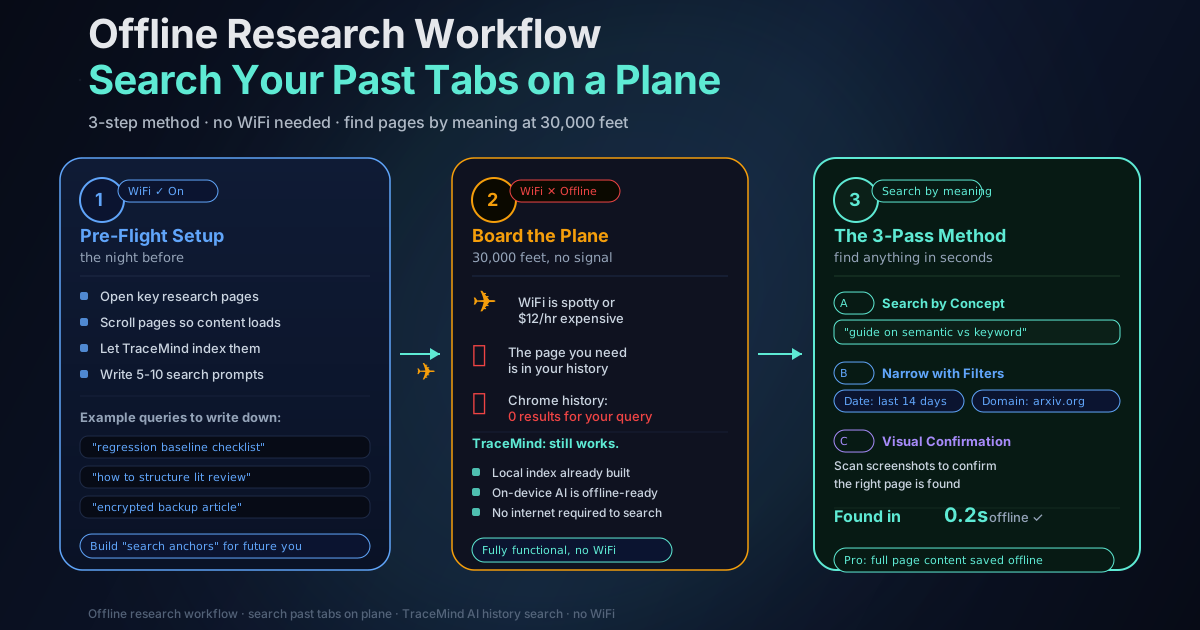
Offline Research Workflow: Search Your Past Tabs on a Plane
Updated April 2026
Planes are where good research plans go to die.
You open your laptop, the Wi-Fi is spotty (or expensive), and the one page you need is somewhere in your history. You remember the idea, not the title. You remember the topic, not the URL. And Chrome's built-in history search is basically "good luck."
This post is a practical, offline-first workflow for finding what you've already read, even when you have zero internet. It's built around the idea that your browsing history can become a private, on-device search library — so you can retrieve pages by meaning, not just keywords.
If you're using TraceMind, this workflow maps perfectly. TraceMind searches browser history with on-device AI, full-text indexing, screenshots, and 100% local storage. And it works offline.
Why "Offline Research" Is Really "Past Research Retrieval"
Offline doesn't mean you stop learning. It means you stop fetching new sources.
Your goal becomes:
- Pull up the articles you already visited
- Re-open the docs you skimmed
- Find the tutorial you half-followed
- Recover the tab you forgot to bookmark
That's retrieval, not discovery. And retrieval is where meaning-based search beats title/URL search. Chrome's history is fine for "I visited GitHub at 2pm." It's useless for "find me that article about async error handling patterns."
The Mindset Shift: Why Chrome's Search Isn't Enough
Chrome history search works best when you remember exact words from a title or URL.
Real life doesn't work that way.
You remember things like:
- "that explanation of RRF hybrid search"
- "a post about IndexedDB encryption"
- "the flight refund policy page"
- "the guide comparing local vs cloud AI"
Meaning-based search is designed for this: describe what you remember, and the tool matches pages whose content and topic align, even if the words don't match. This is semantic search, and it runs entirely on your device in TraceMind using the all-MiniLM-L6-v2 embedding model. No query ever leaves your browser.
I've found this distinction becomes especially clear on a plane. When you're not connected, you're forced to rely on what's already indexed locally. The quality of your offline experience depends entirely on the quality of your indexing tool.
Step 1: Pre-Flight Setup
A little preparation the night before makes a huge difference.
Make Sure Pages Are Captured
If you want to retrieve something offline, you need it indexed locally before takeoff.
TraceMind indexes pages automatically as you browse. But there's a difference between passive indexing and intentional indexing. Passive indexing captures whatever you happen to visit. Intentional indexing means you deliberately open the pages you know you'll need.
Quick routine the night before:
- Open the key sources you'll need (papers, docs, guides, reference pages)
- Scroll each page at least once so the full content loads
- Let TraceMind index normally in the background (it's automatic)
- For Pro users: enable the Offline Page Viewer so full HTML snapshots are saved
TraceMind uses Mozilla's Readability library to extract clean text from pages, compresses it with lz-string (50-70% size reduction), and stores everything in IndexedDB. The actual page content is what gets indexed, not just the title and URL.
Create a "Flight Query List"
Write 5-10 plain-language prompts you know you'll search later:
- "regression baseline checklist"
- "how to structure literature review"
- "the article about encrypted backups"
- "comparison of vector search libraries"
- Your actual memory cues in whatever language you think in
You're building search anchors for your future offline self. This takes maybe 5 minutes and saves significant frustration mid-flight.
Check Your Retention Window
Both Free and Pro store 365 days of history. But if you need something from 8 months ago, verify it's there before you board. Open TraceMind, search for it, confirm it's indexed. Better to discover a gap at home than over the Atlantic.
Step 2: In-Flight Retrieval (The 3-Pass Method)
When you're offline, use a simple 3-pass loop to find what you need.
Pass A: Search by Meaning First
Start with a concept description, not keywords.
Examples:
- "the guide that explains semantic search vs keyword search"
- "the page about Chrome history retention limits"
- "the checklist for extension privacy risks"
- "that article comparing React state management approaches"
TraceMind combines semantic search (understanding meaning via embeddings) with FlexSearch full-text indexing, fused together using Reciprocal Rank Fusion. That means it handles both conceptual queries and exact-phrase lookups. Sub-100ms search latency, even with thousands of indexed pages.
Pass B: Narrow with Filters
Once results are close, tighten with:
- Date range: last 7 days / last 14 days / last month / custom
- Domain filter: only show results from arxiv.org, github.com, docs.google.com, etc.
- Exclusions: remove noisy sites you don't want cluttering results
This is the difference between "scroll forever" and "open the right thing in 10 seconds." Honestly, I find domain filtering to be underused. If you know you were reading documentation, filtering to the specific docs domain immediately cuts results from hundreds to dozens.
Pass C: Use Visual Confirmation
When you can't remember titles, screenshots become your best friend.
A quick scan of page screenshots helps you confirm:
- Yes, this is the right article
- No, that's a similar one from a different author
- This is the same site but a different section
TraceMind captures page screenshots locally during indexing. Free tier stores them at 320x240px (enough for visual recognition), while Pro stores up to 1920x1080px. The visual history feed is useful in exactly these moments — when you're comparing two similar results and need to verify which one you actually need.
Step 3: Turn Found Pages into a Reusable "Offline Pack"
Once you find the page you needed, don't just close it. Convert it into something you can reuse.
On Free: Use Repeatable Searches
TraceMind Free includes:
- Natural language, keyword, and hybrid search
- Full-text indexing of page content
- Visual feed with screenshots and text snippets
- Unlimited pages, 365-day retention
- Up to 3 excluded domains
On Free, your best "offline pack" is a reliable set of queries you can re-run. Build the list before you board, and you can recover most of what you need.
On Pro: Tag, Pin, and Save Full Pages
Pro adds features that make offline work feel organized:
- Offline Page Viewer and Saver: saves full HTML snapshots of pages for offline viewing, even without internet. Auto-saves on browse, with images included and scripts stripped for safety. This is the biggest upgrade for serious offline work.
- Tags with AI suggestions: organize pages into categories (research, reference, backlog) so you can filter by tag while offline
- Notes: attach context to specific pages ("this is the solution I actually used")
- Pins and pinned-only view: surface your must-have references instantly
- Ultra HD screenshots: up to 1920x1080px for visual verification
- Encrypted export/import: backup your entire history index and restore it on another device
- Unlimited excluded domains: keep results clean
The Offline Page Viewer is the standout feature for plane mode. Instead of just finding the page in your history, you can actually read the full page content offline, exactly as it appeared when you visited it. No internet, no cached page required.
Common "Plane Mode" Scenarios
"I Remember the Idea, Not the Words"
This is the most common situation. You remember learning something but can't reconstruct the exact phrasing.
Search: "the explanation of X concept" or "how to do Y" Then narrow by time: last 14 days or last month
The semantic search handles vague conceptual queries well. You don't need the exact words — describe the meaning.
"I Saw It on a Specific Site But Can't Find It"
Search the topic, then filter by domain.
Example:
- Query: "rate limit headers explanation"
- Domain filter: developer.mozilla.org
This combination is extremely effective. You're using semantic search to find the right topic, then domain filtering to confirm the source.
"I Visited It Months Ago"
This is where retention matters. Chrome's native history starts dropping entries after about 90 days. TraceMind's 365-day retention on both Free and Pro covers this case.
If you need to organize, annotate, or save full pages offline, that's where Pro shines. See also: How to Find Pages You Visited Weeks Ago for a full guide on deep history retrieval.
"I Need to Share Notes With My Team After Landing"
Pro's notes and tags are searchable and exportable. Write your annotations mid-flight, then export when you land. The encrypted export format means your history doesn't travel unprotected.
"I Half-Read a Long Article and Want to Continue"
The Offline Page Viewer (Pro) saves the full page content, so you can scroll to where you left off. Free users can find the page via search but will need internet to reload it.
How the Technical Setup Makes Offline Work Possible
It's worth understanding why TraceMind works offline when most AI tools don't.
The AI model (all-MiniLM-L6-v2, 384-dimensional embeddings) downloads once when you install the extension and caches locally. It runs via WebGPU if your hardware supports it, or falls back to WebAssembly. No cloud API call is needed for search.
All page data is stored in IndexedDB, which is the browser's built-in persistent database. It survives browser restarts and works without network access. SHA-256 deduplication prevents storing the same page twice, which keeps the database lean.
The vector index (Voy, WASM-based) also lives locally. When you search, the query embedding is generated on-device, compared against stored embeddings on-device, and results are ranked on-device. The entire pipeline is local.
For context on why this matters from a privacy perspective, the privacy-first extensions overview goes deep on on-device vs cloud tradeoffs.
Quick Checklist
Save this before you travel:
- [ ] Open and scroll key pages before takeoff (so content loads and indexes)
- [ ] Write 5-10 "meaning-based" search prompts you'll use later
- [ ] Confirm recent important pages are searchable in TraceMind
- [ ] Search by concept first, then narrow by date and domain
- [ ] Confirm results using screenshots and snippets
- [ ] Pin and tag your "must reuse" pages (Pro)
- [ ] Enable Offline Page Viewer for full page snapshots (Pro)
- [ ] Export an encrypted backup if moving devices (Pro)
Summary Retrieval Table
| Situation | Strategy | |-----------|----------| | Remember the idea, not the words | Semantic search + date filter | | Remember the site, not the page | Domain filter + topic query | | Visited months ago | 365-day retention, search broadly | | Visual memory of the page | Screenshot feed scan | | Need to read the full page offline | Offline Page Viewer (Pro) | | Organizing for a long trip | Tags, notes, pins (Pro) |
Get Started
If your best research happens in tabs and you don't want to lose it mid-flight, TraceMind is built for exactly that.
Related:
- How to Find Pages You Visited Weeks Ago — More retrieval techniques for deep history
- On-Device AI for Browser Extensions — How local AI works without a cloud connection
- Privacy-First Extensions: On-Device vs Cloud — Why architectural privacy beats legal promises